The window
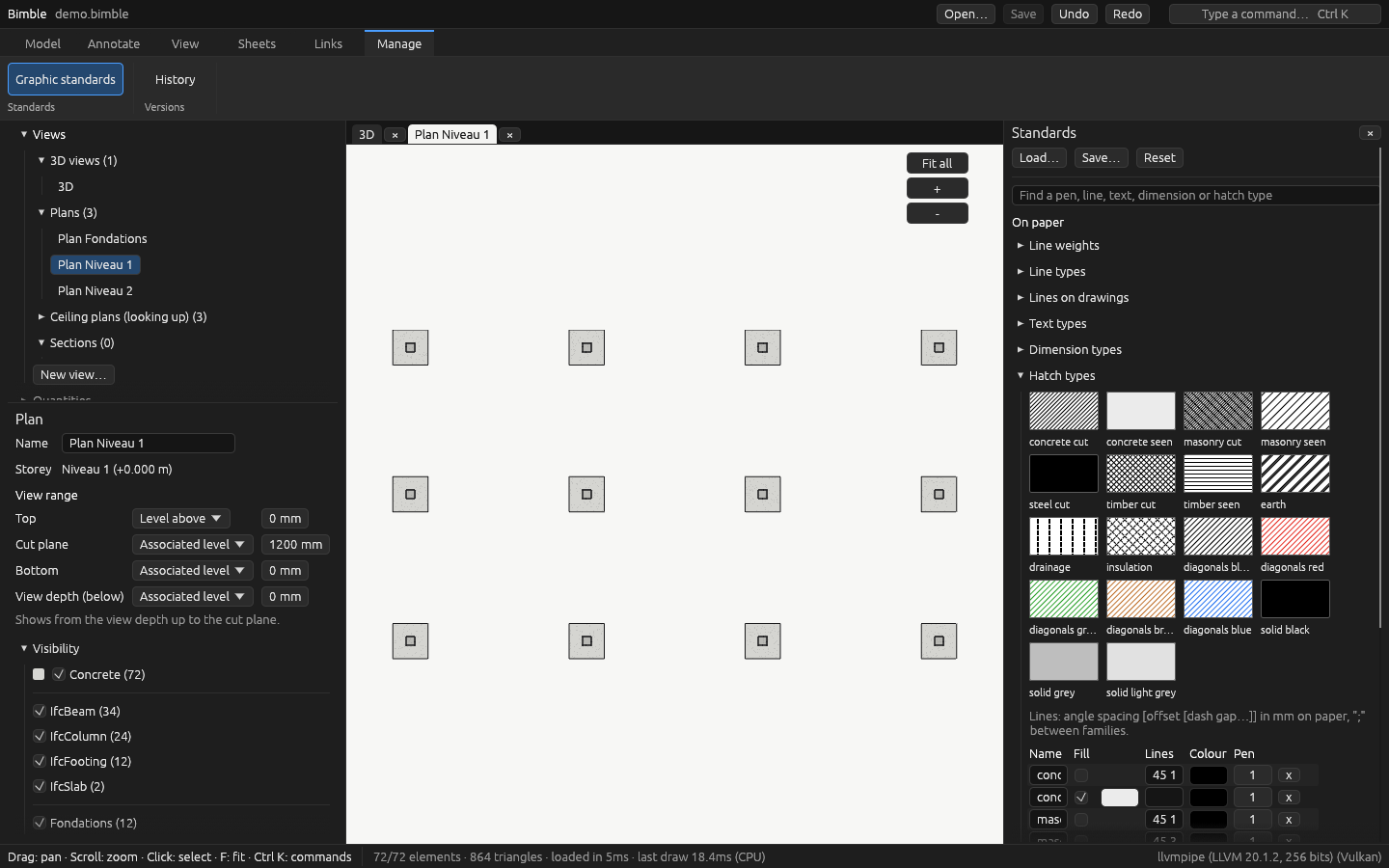
From top to bottom:
- Top row: Bimble (its version on hover; a click opens About), the house button for Home, the File menu, the ribbon's tabs; at the right the file's name (with its IFC schema, IFC2X3 or IFC4) and what isn't saved (cut short when the row is full, whole on hover), then Open, Save, Undo, Redo as icons and the command palette button.
- Ribbon: tabs of tools, in named groups. A tool that is on looks pressed; one that can't be used now is grey. Its tooltip gives its name and key.
- Left: the project browser (views, layouts, objects, links), and under it the properties of what is selected, else of the view. While you place an element, they show its storey and sizes.
- Tabs of the views and sheets you opened, over the drawing. Click one to go back to it; × or a middle click closes it. A right click offers Close, Close other tabs and Close all tabs; with no tab left, Home shows (the model stays open).
- Right: the Standards panel, when open.
- Status bar: what a click does now (place a column, measure, add a text…), the coordinates of the point under the pointer, the state chips (below), then the counts (sizes in kB, MB or GB): elements shown, triangles, load time, the model's memory, and the pictures drawn per second (idle when nothing moves).
While a file opens, a card over the 3D view shows the file, the step (reading, geometry, preparing the view…), how far it is, the time spent and a progress bar.
The File menu
| Group | Entries |
|---|---|
| Files | Open…, Import IFC…, Convert to .bimble (editable)… (editing), Save |
| Share | Share for viewing… (.bimbleview) (viewing), Export IFC4…, Export IFC2x3… (a .bimble model; IFC2x3 for tools that read only that: it leaves out material values and the map conversion) |
| Links | Link IFC… (linked models), Link DXF…, Link PDF… (reference plans), Manage links… (below) |
| Paper | Export view… (plans) |
| Project | Project information (project), Settings… (below), About Bimble…: the version, graphics card and system, with Copy for a bug report |
| History… and Exit, on the desktop |
The ribbon
| Tab | Groups and tools |
|---|---|
| Project | Project information (project) |
| Collaborate | Links: Link IFC (linked models), Link DXF, Link PDF (reference plans), Manage links (below). Work together: Shared folder, Synchronize (history) |
| Model | Place: Column, Beam, Wall, Slab (editing). Inspect: Measure |
| Annotate | On the sheet: Select, Text, Dimension, and the text and dimension types they use (sheets). On plans: Section labels, Openings, Section marks, Levels (plans) |
| View | Show: Edges, Hatching, Orthographic. Cut: Section box, Box to selection. Camera: Fit all, Top. Visibility: Hide, Isolate, Hide in view, Isolate in view, Reveal hidden, Unhide (hide and isolate) |
| Sheets | New sheet, Close sheet; Export: On paper… (plans) |
| Manage | Graphic standards (styles), Materials (materials), History (history, desktop), Settings (below) |
Manage links
Collaborate → Manage links lists every file linked to the model, by type: IFC and Bimble models, DXF plans, PDF plans (with the view each plan is in). For each one:
- Reload reads it again from where it was read (on the desktop), after the other office sent a new version under the same name;
- Reload from… replaces it with another file, kept where it was placed;
- Delete removes it.
Nothing implicit
What Bimble is doing that isn't its default is always written on screen, with a way back:
- State chips, in the status bar: Placing: column, Measuring, Sheet tool: dimension, Section box, Edges off, Hatching off, Orthographic, Hidden: 2 classes, 1 storey, 3 measurements, Plan options changed. Click a chip's × to go back to the default; its tooltip says what that does (for Hidden, everything is shown again and saved with the view).
- Not saved: the top row says what isn't saved, in words: Not saved: model, standards.
- Undo and Redo say what they would do ("Undo: move P1"), and are greyed when there is nothing to undo. Save says what it saves.
- Closing with something not saved asks: Save and close, Close without saving, or Cancel. In a browser, leaving the page asks too.
- Reset to default… in the standards asks first; Revert goes back to the style file as loaded or saved.
The command palette
Ctrl+K, or the button at the top right, opens the command palette. Type part of a command ("sec box", "dim", "col") and press Enter, or click it. Each command shows its ribbon tab and its key. Up and Down move, Esc or a click outside closes it. Every tool of the ribbon is there, and so is every view ("Go to Plan Level 1"), sheet and schedule.
Settings
File → Settings… (also Manage → Settings) holds what belongs to this computer, not to a model. It is saved in
Bimble's settings.json (in a browser, the browser's storage) and applies to every model.
- You: your name and e-mail. They are written as the author of your commits and on the elements you borrow when working together ("this element belongs to …").
- Coordinates: the survey system of the model (LV95 for Swiss models) or WGS84 latitude and longitude, for the coordinates in the status bar.
- Appearance: the theme (Grey by default, Dark, Light, Solarized dark and light, High contrast; every text readable on every surface), the font (Roboto or Ubuntu Light) and the text size (10–16 pt, 12 by default). Changes apply at once.
- Memory for one model: the share of this computer's memory a model may use (80 % by default). A model that needs more asks which part to show. The window says how much the open model holds; Reopen with this limit applies a new value. In a browser the limit is what a tab can address, 4 GB.
- While the view moves: the pictures per second to keep while you orbit, pan or zoom (15 to 240 fps, 30 by default), or Draw everything. Below that rate Bimble leaves out what is smallest on screen while the view moves; a still view is always whole. Simplified far parts while moving also draws distant parts as simplified shapes on a machine below that rate. Test shared shapes' copies on the GPU is experimental.